This is an old revision of the document!
part of the GtC documentation
Annotations
We have added a “plugin” for annotation in our DokuWiki, to allow people to make comments and suggestions without actually editing the text itself.
The official documentation is here: plugin:annotations but you are not expected to read that! Here we will give you the basics in, hopefully, a straightforward, easy-to-follow way.
As for all editing, you can try it out in the playground. So, let's try it!
Making an annotation
Any reader can easily create an annotation on any piece of text on a wiki page here.
- First, highlight/select the text you wish either to comment on, or to suggest something related about.
- An “Annotate” button
 pops up, usually below the text you have highlighted.
 - Click on that button. A dialogue box pops up in front of the page.
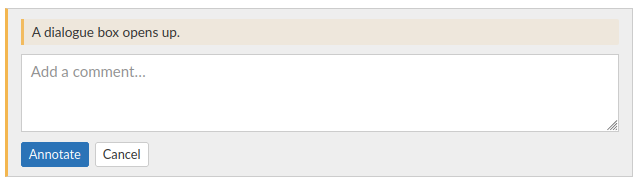
- Fill in your comment or suggestion, and click on “Annotate” — or if you've changed your mind, “Cancel”.
- The dialogue box vanishes, and the text you selected will get an orange background
The text you entered will only pop up if you mouse-over that highlighted text.
The orange highlight means that it has not yet been resolved.


Following up on the annotation
- Next, you or anyone can revisit the annotation, simply by clicking on the highlighted text.
- If you wrote the annotation, these will appear:

- So you can resolve, edit, or delete your own annotation.
- Anyone can “resolve” the annotation: that means, it stays visible, but turns green.
- Anyone can also reply, with the text box and its own button below.
Both original annotations and replies can be replied to. - Close the annotation box by clicking on the “x” in the top right corner.
- You can also open or close the annotation box by clicking on the appropriate
 icon on the left.


Teamwork on annotations
This gives a way for two or more curators to come to agreement on potential edits to a page.
- When agreement has been reached, delete any replies that are no longer helpful, if you can.
- Anyone who has permissions to edit the page can then go ahead and edit it accordingly.
- If no one in your team is comfortable editing, just ask anyone with Admin permissions.
- Once the desired edit is done, the annotation and replies can be deleted.