**This is an old revision of the document!**
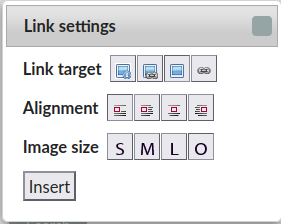
OK, you're keen and sure you want to go through with this approach! When you hover over the boxes in those three rows (the real thing, not the illustration above!) it will pop-up what each of them mean. Explaining these, based on the pop-up text:
| Link Target | Link to detail page | Direct link to original | No Link | Show only the link, not the image |
|---|---|---|---|---|
| Alignment | No align (text runs on) | Left align (to the left of ongoing text) | Middle (and text goes below) | Right align (to the right of ongoing text) |
| Image size | Small (200px) | Medium (400px) | Large (600px) | Original size |
- “Link to detail page” means that if you click on the image, it will take you to the page in DokuWiki that gives details about the image.
- “Direct link to original” is useful when you have a small graphic, so if a reader clicks on it it goes straight to the full size version of the image.
- “No link” means what it says.
- “Show only the link” will give the link as text, and if you click on the text you will go to the image.
So, say you choose, by clicking on: Direct link to original; No align; Medium. The click on “Insert”. You get something like this (I've just uploaded a random image):
{{:doc:2024-09-24_18-39-24.png?direct&400|}} which is displayed as
Explore other options yourself. You can cross-compare this with the explanation in images videos.