**This is an old revision of the document!**
part of the GtC documentation

Uploading photos and images
Being able to upload photos and other images is important for all curators for their own personal home pages (see getting an account), and then for improving any other pages you create or curate. In Growing the Commons, we pride ourselves in making pages look attractive with the addition of images — a practice we have taken on from Dave and his great Lowimpact site. 
The images videos page explains how to use an image already on the web, in which case there is no need to upload anything, you can just use them from their existing URL. The rest of this page assumes that you need to upload a photo or image that is not already on the web, and that has not yet been uploaded to this wiki.
Once you have understood the process, you can practice uploading on the playground or on your own home page.
Uploading with the Media Manager
To upload images, we recommend using the Media Manager, available in the spanner icon  menu (very top, right), not while you are actually editing a page. You can then use it any time later, as explained in images videos.
Again, if the image is on the web already, you don't need to upload it, you can use it from where it is. However, if you are unsure whether it will stay in its place on the web, you can first download the image from the web onto your own computer, and then follow on here.
Before you upload
Before you upload an image, it's best to get to the page where it will be used. This will make it easier for you, as you won't have to worry about which namespace it's in. If you want to upload while you are on this page, or anywhere else, you will need to know the namespace of the page you want to use it on. You can revise that from the namespace page.
Also, you will need to be ready with the file you want to upload.
Close any edit you may be on, saving if desired, before starting uploading with the Media Manager.
The uploading process
Here's what to do with the Media Manager.
- Open the Media Manager (in the spanner icon menu)
 . If you want to back out, that's easy, just go back on your browser, or click on the page name in the “Trace” at the top.
 - Click on “Upload”, just under the title, between “Media Files” and “Search”.
- If you try that from this page, just underneath “Upload” it will say “Upload to doc”. That's the namespace you will be uploading to. If you will be using the image in a different namespace, choose that namespace, on the left, and repeat from the step above.
- The namespace will need to be one where you have the right permissions. Then:
- either drag your photo file onto where is says “Select files…” (it changes to “Drop files here to upload”);
- or click on “Select files…” and work through your file system to choose the file you want to upload.
- When your file is selected, its name will show. If you need, you can edit the name, e.g. to make it simpler.
- Click on the big green “Upload” button just below the name of your photo.
- The file name will then show. You can click on that if you like, to check: on the right, you can see the namespace and filename so you are sure.
- The image is now uploaded to the chosen namespace.
Using the image, in brief
To use the image you have uploaded, you will write something like this on the page:
{{doc:nuts.jpg?200|}}, which gives you this image:

Please go to the images videos page for the proper explanation.
Uploading using the toolbar "Add images…"
This is a shortcut which we only suggest if you are comfortable with the above process already.
While you are editing a page, click on the image icon in the edit window toolbar  to bring up the box for adding an image. The first thing you can do with this pop-up is to check whether the image or photo you want has already been uploaded. The ones in your current namespace are displayed underneath on the right hand side of the pop-up; you can also search for images in other namespaces by selecting a different namespace on the left.
You upload via the toolbar with “Add images…”, similar to the process above. You either click the “Select files” button, and choose from your device storage; or you drag a file from your storage onto the place where the “Select files” button is — the button changes momentarily into “Drop files here to upload”. When the file is chosen in either way, click on the “Upload” button. When you have done that, your filename appears just above the upload space. Then you continue with the process explained in Inserting images with the toolbar.
In effect, you're doing both processes at once: uploading and inserting. Because they are both relatively complex, until you are comfortable with these techniques, we suggest you do them separately!
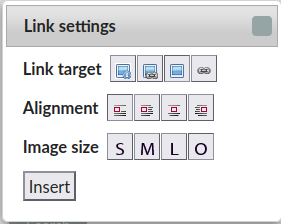
OK, you're keen and sure you want to go through with this approach! When you hover over the boxes in those three rows (the real thing, not the illustration above!) it will pop-up what each of them mean. Explaining these, based on the pop-up text:
| Link Target | Link to detail page | Direct link to original | No Link | Show only the link, not the image |
|---|---|---|---|---|
| Alignment | No align (text runs on) | Left align (to the left of ongoing text) | Middle (and text goes below) | Right align (to the right of ongoing text) |
| Image size | Small (200px) | Medium (400px) | Large (600px) | Original size |
- “Link to detail page” means that if you click on the image, it will take you to the page in DokuWiki that gives details about the image.
- “Direct link to original” is useful when you have a small graphic, so if a reader clicks on it it goes straight to the full size version of the image.
- “No link” means what it says.
- “Show only the link” will give the link as text, and if you click on the text you will go to the image.
So, say you choose, by clicking on: Direct link to original; No align; Medium. The click on “Insert”. You get something like this (I've just uploaded a random image):
{{:doc:2024-09-24_18-39-24.png?direct&400|}} which is displayed as

Explore other options yourself. You can cross-compare this with the explanation in images videos.