This is an old revision of the document!
part of the GtC documentation
Images and videos
Try out all these techniques below in the playground.
Inserting images
Both DokuWiki and Markdown syntax work for images. The first step is to know where the image is that you want to display. For external images (on the web), it could be something like https://www.growingthecommons.org/images/screen_wiki_hu_d50df2aeb9adf2de.webp, which the location of one of the images on the Growing the Commons landing page:

For internal images in DokuWiki, you need to include the namespace, or just : if there is no namespace.
So the location, or address, of
 is
is game:game.jpg, written out, with sizing, as {{game:game.jpg?200}}.
You can find all the existing internal images, with their correct addresses, through the Media Manager, in the  spanner icon menu, top right.
DokuWiki syntax
The most basic way of displaying an image on DokuWiki is to enclose the address of the image in double braces, with no extra spaces inside the braces, like this: {{:favicon.ico}} which gives you , or
{{https://licensebuttons.net/l/by-sa/4.0/88x31.png}} which gives  , both inline.
Many images are too large to display inline, and you may want them in a separate paragraph:
{{:logo_wide_rounded.png}} (on a line by itself) gives

Markdown syntax
In Markdown, the equivalents are 

and 
Sizing
So, it's the wrong size for you? You add a number for the width (in pixels) that you want, after the address. Height is adjusted in proportion.
Using the above examples: {{:favicon.ico?100}} is and
{{:logo_wide_rounded.png?200}} is
Similarly, in Markdown,  is and
is though curiously, the text splits after each actual image.
Inserting images with the toolbar
This allows you to choose simple options without needing to remember how to code them as above.
While you are editing a page, clicking on the image icon on the toolbar  brings up a pop-up window. First find the image you want.
When you click on the name of the file you want you get a pop-up, to choose how to display it, in terms of link, alignment and size. It's called “Link settings” but really it means “Image settings”! Here's what that pop-up looks like, and what it means. If you hover over the different options (in the real one, not this illustration!) it explains some of what each one means. The table here elaborates a little.
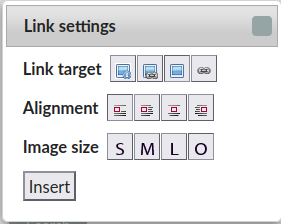
| Link Target | Link to detail page | Direct link to original | No Link | Show only the link, not the image |
|---|---|---|---|---|
| Alignment | No align (text runs on) | Left align (to the left of ongoing text) | Middle (and text goes below) | Right align (to the right of ongoing text) |
| Image size | Small (200px) | Medium (400px) | Large (600px) | Original size |
- “Link to detail page” means that if you click on the image, it will take you to the page in DokuWiki that gives details about the image.
- “Direct link to original” is useful when you have a small graphic, so if a reader clicks on it it goes straight to the full size version of the image.
- “No link” means what it says: clicking on the image does nothing.
- “Show only the link” will give the link as text, and if you click on the text you will go to the image.
So, say you choose, by clicking on: Direct link to original; No align; Medium. The click on “Insert”. You get something like this (I've just uploaded a random image):
{{:doc:2024-09-24_18-39-24.png?direct&400|}} which is displayed as

As this is a DokuWiki function, this gives you an image in DokuWiki syntax. Explore other options yourself. You can cross-compare this with the explanation in images videos.
Ask us, if you would like to be shown around this tool.
Basics for videos
Inserting videos is not very simple. Please ask for help! For more information around this subject, try syntax and WRAP.
Using the toolbar
There is an button icon on the right of the editing toolbar for videos:  :
click on that, and a pop-up asks you to put in the full URL of the video you want.
:
click on that, and a pop-up asks you to put in the full URL of the video you want.
Trying that now with https://www.youtube.com/watch?v=Qr5Q3VvpI7w gives the code
{{youtube>Qr5Q3VvpI7w?}}: special treatment for YouTube. The video appears as
Similarly, https://www.youtube.com/watch?v=lLYt1zlqUtE gives you, in the default sizing,
DokuWiki syntax
There are other more complex ways of embedding videos. If you want control over the size, you can write something like this:
{{url>https://www.youtube.com/embed/lLYt1zlqUtE 560,315}}
which gives you the slightly larger, left-aligned
If you want other alignments (e.g. centering) use WRAP.